
You can easily run any Windows game on Linux nowadays without too much work. Let’s look at an example - many Ubisoft games are exclusive to their launcher for at least a few months after release, if you have any of them on their Connect launcher, you might be interested in installing it on Linux, on your Steam Deck, or other gaming hardware.
Ubisoft Connect
While I had issues with controls in Ubisoft games installed through Lutris, all of them run really well with Steam input, installed directly following these simple steps. You can use the same process for other windows game installers.
This process takes advantage of Steam and Proton to install windows applications. We will run the .exe installer through Steam to get it installed, then modify said install to be able to launch the installed product through Steam.
Installing Ubisoft Connect
- If you’re on SteamDeck (or other Steam gamemode session) make sure to switch to Desktop first :)
- Download the launcher: https://www.ubisoft.com/en-gb/ubisoft-connect/download
- Add it to Steam as a non-steam game (Menu -> Games -> Add a non-steam game to my Library)
- Right click the added installer and go to its Properties -> Compatibility -> Force the use of proton.
- Play -> it should now run the installer, follow the steps to install it, all the defaults are fine. If the launcher automatically starts it at the end, close it.
We’ve now installed the launcher but we can’t exactly execute it directly just yet. Let’s sort that out:
- Right click the installer in steam again, this time we’re gonna change the Target field to
"/home/deck/.steam/steam/steamapps/compatdata/<ID>/pfx/drive_c/Program Files (x86)/Ubisoft/Ubisoft Game Launcher/UbisoftConnect.exe"- You may have noticed the
<ID>there - this is a generated ID for your non steam game and it’s probably different from mine. To find out what it is, simply navigate to that location and take a look at which folder was modified last. That’s the correct one. - If you’re not on Steam Deck the
/home/deckis gonna be different - that’s your home folder and it will be your username. - And don’t forget the quotes!
- You may have noticed the
- You’re actually done now. It will work with gamescope, mangohud, or any other shenanigans that you’re used to. Probably. Use the Launch options same as with any other Steam game.
- Use the SteamGridDB Decky Plugin to change the artwork on Steam, or SDGBoop (flatpak) in combination with steamgriddb.com
- Cleanup - you can now delete the installer.
Enjoy!
Find me in the Fedora Linux Discord if you have any issues or questions.
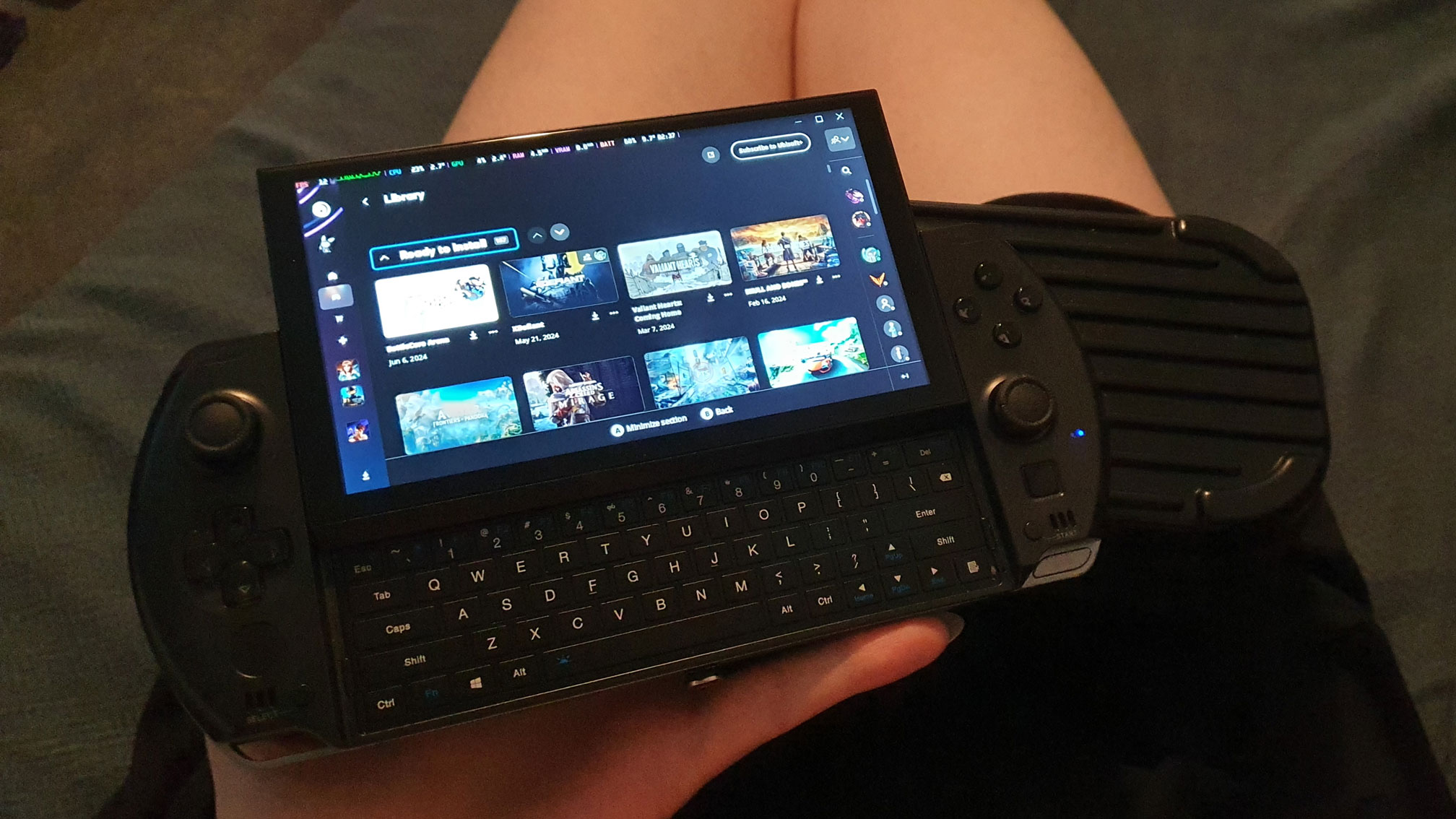
Ubisoft Connect running on GPD Win4 (Linux)